
“Device unresponsive” is the most common smart home complaint — and it is almost always the network, not the device. Work through these fixes in order. 1. The 2.4GHz problem Most budget Wi-Fi devices only speak 2.4GHz. If your router broadcasts one combined network name, your phone may sit on 5GHz while the plug needs 2.4GHz — and pairing fails. Fix: temporarily separate the bands in router settings during setup, or use your router’s IoT/guest network on 2.4GHz. 2. Too many Wi-Fi devices Consumer routers quietly struggle past 30–50 clients. Symptoms: random devices dropping and reconnecting. Fixes: move bulbs and sensors to Thread or Zigbee (they form their own mesh and each mains-powered device strengthens it), or upgrade to a mesh Wi-Fi system rated for many clients. 3. Dead zones A device at the edge of coverage will misbehave forever. Test with your phone at the device’s exact location. Solutions: reposition the router, add a mesh node, or — for Thread devices — plug any mains-powered Thread device (a smart plug works) halfway to act as a repeater. 4. The router settings that break Matter Matter needs IPv6 and mDNS to work across your network. If Matter devices pair but then vanish: check the router has IPv6 enabled, disable “AP/client isolation” on the main network, and avoid placing the hub and devices on different subnets or VLANs unless you know how to route mDNS between them. 5. When one device keeps dropping Assign it a static IP (DHCP reservation), power-cycle it once, and update its firmware. If it still drops, check its distance from Wi-Fi congestion sources — microwaves and baby monitors sit right on 2.4GHz. The golden rule Restart in this order: router first, then hub, then device. Ninety percent of mystery failures die at step one.
How to Plan Smart Lighting Room by Room (Without Overspending)
Smart lighting is the most satisfying upgrade in home automation — when it is planned. Bought randomly, it becomes a drawer of half-used bulbs. Plan it room by room instead. First: bulbs, switches or both? Smart bulbs give colour and per-lamp control; they hate wall switches being turned off. Smart switches keep normal wall behaviour and control the whole circuit — better for ceiling fixtures and rentals where guests will always press the switch. Many homes end up with switches in shared rooms and bulbs in personal spaces. Living room Layer three sources: a colour lamp behind the TV (bias lighting reduces eye strain), warm table lamps on smart plugs or bulbs, and the ceiling on a dimmer switch. Scenes: Movie (10%, warm), Reading (60%), Entertaining (full, slightly cool). Kitchen Bright and functional wins: high-CRI white-spectrum bulbs or switches at 4000K for work, with a 30% warm “evening” scene for late snacks. Under-cabinet light strips are the luxury worth paying for. Bedroom Warm-only is fine and cheaper. The killer features are fade-in wake-up lighting (gentler than any alarm) and a bedside “everything off” control. Keep any status LEDs out of sight lines. Hallways and bathroom This is motion-sensor territory: lights on at 100% by day, 10% dim after 23:00 so nobody is blinded at 3am. A cheap sensor plus one bulb per corridor is all it takes. Budget strategy Start with WiZ or IKEA Matter bulbs (under $12) in the rooms you use most; save Philips Hue money for where colour quality visibly matters. Whatever brand you pick, stay consistent per room — mixed systems in one space means two apps for one light scene.
How to Secure Your Smart Home in 2026: A Practical Hardening Guide
Every connected device is a small computer on your network — and most people never change a single default. Following NIST researcher recommendations and 2026 security guides, here is the checklist that closes the doors attackers actually use. 1. Kill the default passwords Unique, strong passwords on every device and app prevent the majority of automated attacks. A password manager makes this painless. While you are at it, change your router’s admin password — separate from the Wi-Fi password. 2. Turn on two-factor authentication Use an authenticator app rather than SMS for the accounts that control your home — Amazon, Google, Apple, and each device brand’s app. 3. Segment your network Most routers offer a guest network. Put smart home devices on it, separate from your laptops and phones. If a cheap plug gets compromised, the attacker cannot pivot to your banking. Enable WPA3 if your router supports it. 4. Keep firmware updated Outdated firmware is the #1 way smart devices get compromised. Enable automatic updates wherever possible, and apply critical patches quickly. Devices that no longer receive updates should be retired — an unpatched camera is a liability, not a bargain. 5. Prefer physical privacy controls A physical mute switch or camera shutter beats any software setting. When buying, favour devices that offer them. 6. Keep footage local where possible Cameras and doorbells with SD-card or NAS storage keep your video inside your own walls. What never leaves the house cannot leak from a server. 7. Audit twice a year Open your router’s device list. Anything you cannot identify gets investigated or blocked. Remove apps and accounts for devices you no longer own. One evening of setup buys years of quiet security — do it before you add the next gadget, not after the first scare.
How to Create Smart Home Automations That Actually Work
Devices are the easy part — automations are what make a house feel smart. Here is a practical method for building routines you will never have to think about again. Start with triggers, not gadgets Good automations answer: when X happens, do Y. The strongest triggers are time (sunset, weekday mornings), presence (last person leaves, first arrives), sensors (motion, door opens, humidity rises) and device state (TV turns on). The five automations every home should have 1. Goodbye: when the last person leaves — lights off, thermostat to eco, robot vacuum starts, cameras arm. 2. Welcome home: first person arrives — hallway lights on, thermostat to comfort. 3. Wind-down: at 22:00 — lights dim and warm, blinds close. 4. Night safety: motion in the hallway between 23:00 and 06:00 — floor lights at 10% (not full blast). 5. Morning: weekdays at 07:00 — bedroom lights fade in, kettle plug on, speaker reads the weather. Rules that keep automations reliable Prefer local execution. In 2026 the best hubs run logic locally — lights respond in 80ms instead of 800ms and keep working when the internet is down. Alexa routines on an Echo Hub, HomeKit automations on a home hub, and SmartThings local routines all qualify. One trigger, one job. Complex mega-routines break in confusing ways. Build small automations that layer. Add conditions. “Motion turns on lights” becomes good with “only after sunset” and “only if TV is off”. Test the failure case. What happens if the sensor battery dies? If the answer is “the lights never turn off”, add a timeout. Where to build them Use your ecosystem’s native app first (Alexa Routines, Google Home Automations, Apple Home). When you outgrow them, Home Assistant is the enthusiast’s next step — but most homes never need it.
How to Set Up a Matter Device, Step by Step (2026 Edition)
Matter setup is usually a two-minute QR-code scan — when the groundwork is done. Here is the exact order that avoids the classic failures. Step 1: Update everything first Before touching the new device, update your phone, your smart home app, your hub’s firmware and your router. Half of all Matter pairing failures trace back to outdated software somewhere in the chain. Step 2: Confirm your controller and border router You need a Matter controller (HomePod, Nest Hub, Echo, SmartThings hub) online. If the new device uses Thread, you also need a Thread border router — no border router, no connection. Devices that double as one: Apple TV 4K (2022+), HomePod and HomePod mini, Nest Hub (2nd gen), Nest Hub Max, Echo (4th gen), SmartThings Station. Step 3: Find the QR code Every Matter device has a pairing QR code — on the device, in the box, or in the manual. Keep it: you will need it again if you ever reset the device. Step 4: Add the device in your app Apple Home: + > Add Accessory > scan. Google Home: + > New device. Alexa: Devices > + > Add Device > Matter. SmartThings: + > Add device > scan QR. Keep your phone close to the device during pairing and make sure Bluetooth is on — Matter uses BLE for commissioning. Step 5 (optional): Share to a second ecosystem Matter’s superpower is multi-admin: the same bulb can live in Apple Home and Alexa simultaneously. In your first app, find the device’s settings and look for “Turn on pairing mode” — then add it in the second app with the new code shown. If pairing fails 1) Move the device closer to the border router. 2) Restart phone and hub. 3) Check the device is not still paired to a previous home — factory-reset it. 4) Verify your router allows IPv6 and mDNS (most defaults do). Try again; second attempts succeed surprisingly often.

Best Budget Smart Plugs and Bulbs of 2026: Smart Home for Pocket Money
You do not need a four-figure budget to start a smart home. In 2026, plugs and bulbs — the two highest-impact starter devices — cost less than ever. Here are the best cheap picks that do not feel cheap. Best smart plug value: IKEA Matter plugs IKEA’s new Matter-over-Thread plugs are absurdly affordable and pair directly with any ecosystem — Apple, Google, Alexa or SmartThings — via any Thread border router. No proprietary hub, no app lock-in. Best Wi-Fi plug: Amazon Smart Plug / TP-Link Tapo Around $7–20 each. The Amazon plug is flawless inside Alexa; the Tapo P400M (~$20) is the top budget pick for outdoor use — schedules for garden lights and holiday decorations included. Best budget bulbs: WiZ WiZ Color bulbs run about $12 (often under $10), connect over Wi-Fi with Matter compatibility, and need no hub. The best balance of price, colours and reliability in 2026 testing. Cheapest usable bulbs: Wyze About $8 per bulb, straight onto Wi-Fi, works with Alexa and Google. Outfit two or three rooms for the price of one premium starter kit. Best colour effects: Govee A 4-pack for $32.99 with 16 million colours and music sync — the fun pick for media rooms and teenagers’ bedrooms. The $100 starter recipe 1) A smart speaker on sale (Echo Dot or Nest Mini, ~$35). 2) Two smart plugs for lamps or the coffee machine (~$15). 3) Three or four budget bulbs for the rooms you use most (~$40). That is voice control, scheduling and automation across half your home — for under $100. Upgrade to Thread devices as prices keep falling; IKEA’s lineup makes that path cheaper every quarter.
Best Smart Speakers and Displays of 2026: Echo, Nest and HomePod Compared
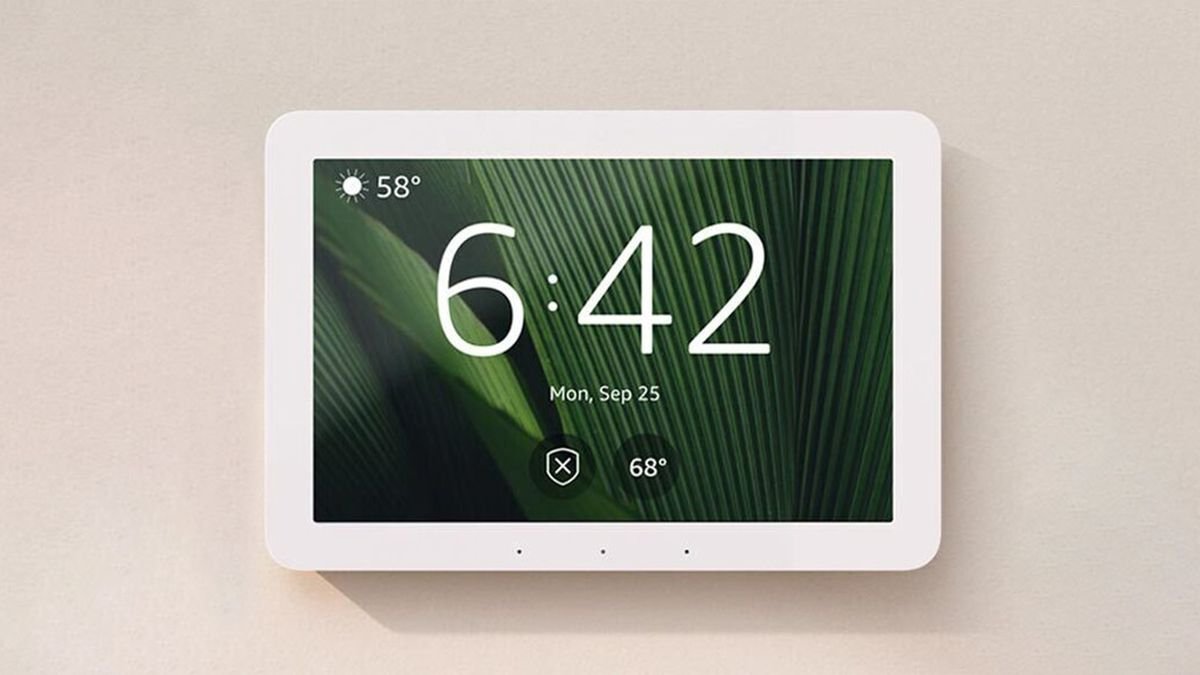
The smart speaker got its biggest upgrade in a decade in 2026, as LLM-powered assistants rolled out across every major line. Here is what to buy now. Best smart display: Amazon Echo Show 8 (3rd Gen) The best-tested smart display around: a versatile 8-inch screen, great speakers, and a design that fits anywhere. With Alexa+ rolling out — included with Prime — it handles conversational commands and complex smart home scenarios without memorised phrases. Best for Google homes: Nest Hub Max A 10-inch display with face-match personalisation, now running Gemini for Home — measured at over 94% accuracy on complex queries in PCMag’s 2026 evaluation. The best answer engine you can put on a kitchen counter. Best wall-mounted control: Amazon Echo Hub Purpose-built control panel with Zigbee, Thread and Matter radios. See every device at a glance and keep automations running locally during internet outages. Read our full review. Best speaker for audio: Apple HomePod (2nd gen) Still the best-sounding smart speaker with a Thread border router inside, and the natural anchor for an Apple Home household. Siri lags the LLM assistants in conversation, but device control is fast and private. Best budget entry: Echo Dot / Nest Mini Either gives you voice control of your whole smart home for under $50 — frequently under $35 on sale. The cheapest way to make any room smart. The 2026 rule Buy the display of the ecosystem you already live in — assistant intelligence now matters more than speaker specs, and both Alexa+ and Gemini for Home improve monthly via software updates.
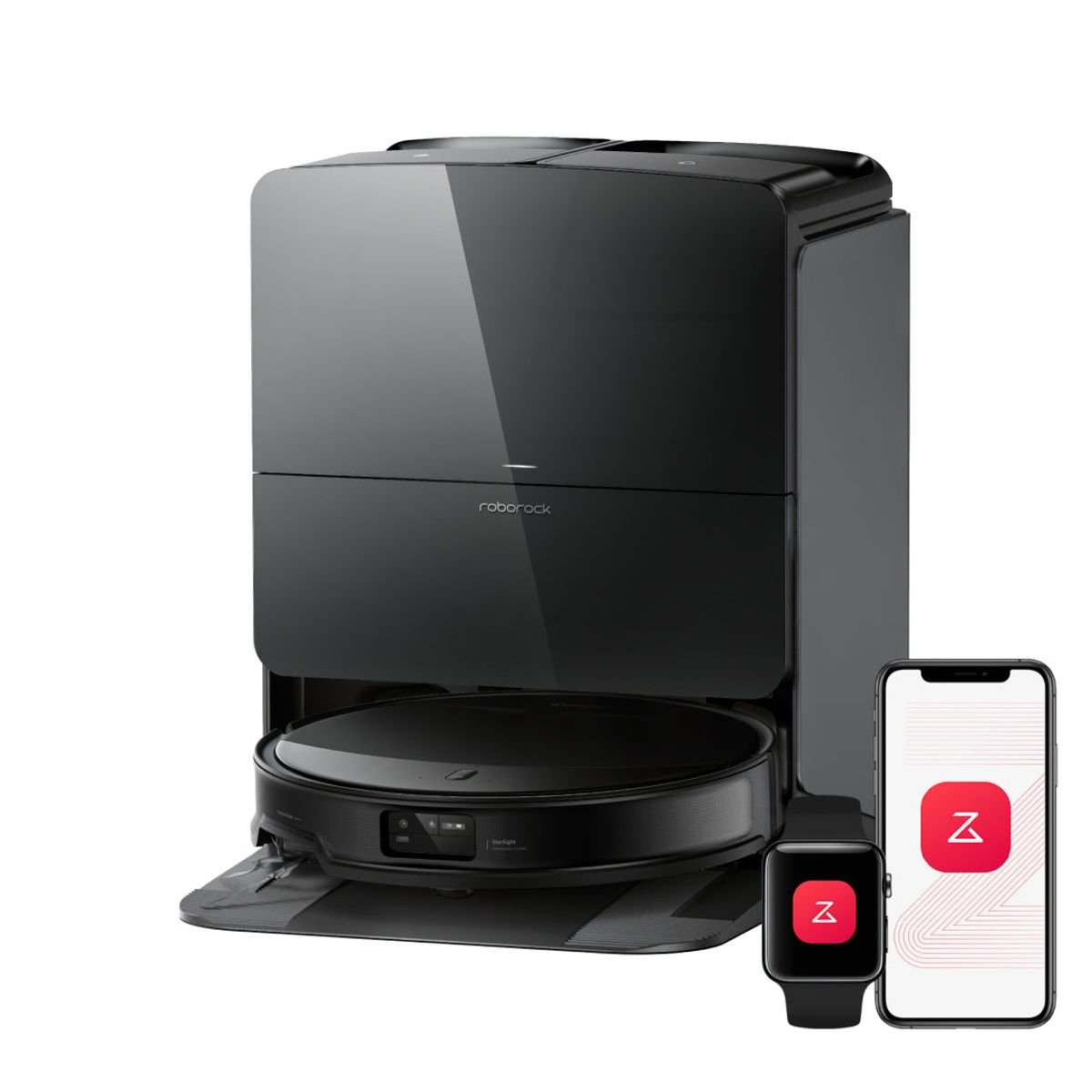
Best Robot Vacuums of 2026: We Compared the Top Test Rankings
Robot vacuums improved dramatically in 2026 — slimmer designs, smarter obstacle avoidance and docks that do everything. Based on aggregated results from Vacuum Wars, RTINGS and Tom’s Guide testing, these are the standouts. Best overall: Roborock Saros 10R Vacuum Wars’ #1 robot vacuum and RTINGS’ best tested. Just 8cm tall, best-in-class obstacle avoidance (a perfect 24/24 in testing), a tangle-proof DuoDivide brush and a dock that empties, washes with 80°C water and hot-air dries. $1,599.99. Read our full review. Best value flagship: Dreame L60 Ultra PE Delivers a large share of the Saros 10R experience — strong suction, capable mopping, self-maintaining dock — for hundreds less. The smart pick if the Roborock price makes you wince. Best mid-range: Mova P10 Pro Ultra Excellent cleaning scores with a full-service dock at a mid-range price. Fewer AI tricks, but the fundamentals are all here. Best for deals: Ecovacs Deebot line Ecovacs flagships regularly see discounts of up to $600 during sales events, making them the best value plays during Prime Day and Black Friday windows. What actually matters Ignore raw suction numbers above ~10,000Pa — past that point, brush design, obstacle avoidance and dock capabilities determine real-world happiness. If you have pets, prioritise anti-tangle brushes and camera-based obstacle recognition. If you mop, insist on heated pad washing and drying; damp pads smell within days. And measure your furniture clearance: slim LiDAR-free designs like the 10R reach places turret models cannot.
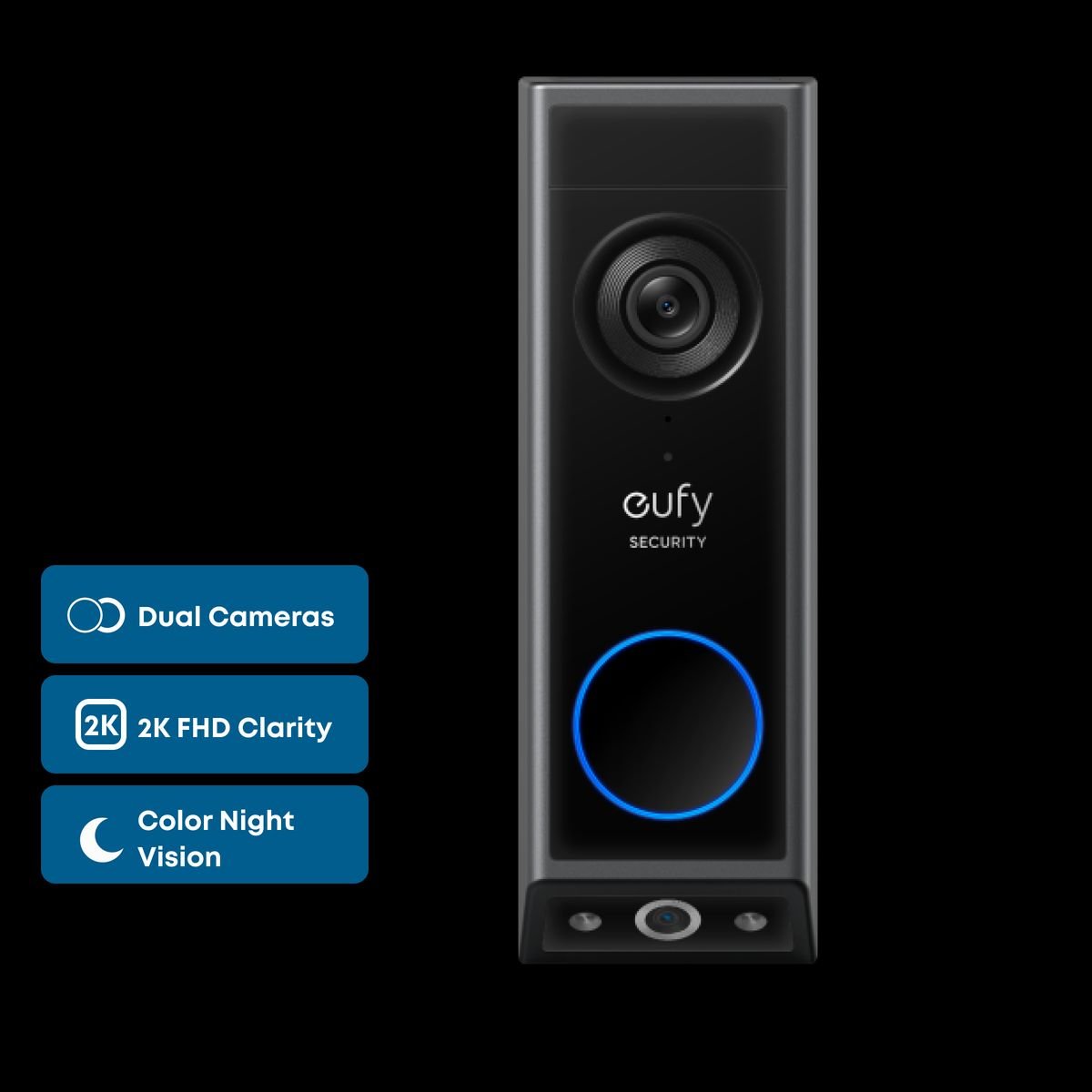
Best Video Doorbells of 2026: Lab-Tested Winners From $20 to $200
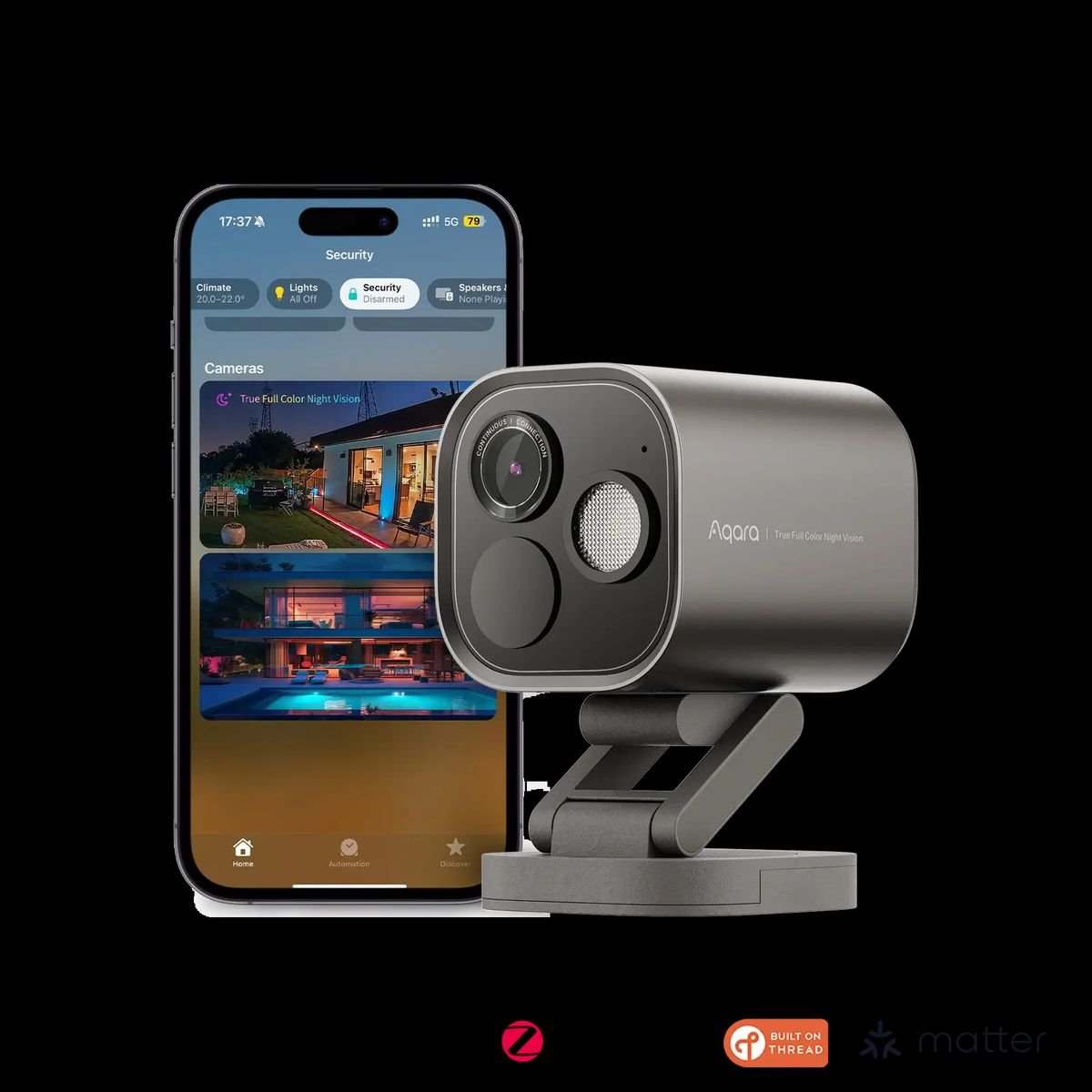
Consumer Reports lab tests and hands-on reviews from Tom’s Guide and Security.org point to a clear set of winners this year. Here are the video doorbells worth your money in 2026. Best overall: Eufy Video Doorbell E340 The most complete doorbell for most buyers: dual cameras (one for faces, one for packages), colour night vision, and every AI feature included forever on 8GB of local storage — no subscription needed, saving about $48/year versus cloud plans. Best in lab tests: Logitech Circle View Top score among all models in Consumer Reports’ testing at $200, with excellent data security and response time. The pick for Apple Home users — it supports HomeKit Secure Video. Best video quality: Arlo Video Doorbell 2K At $130, its 1944 x 1944 HDR sensor captures faces clearly and even package labels legibly. Consumer Reports gives it top marks for data security and response time. Best budget: TP-Link Tapo D130 Around $60, one of the smallest wired doorbells, with 24/7 local recording, colour night vision and AI object recognition — all without a subscription. CR rates it strongly across the board. Cheapest worth buying: Wyze Video Doorbell Under $60 with HD video, colour night vision and two-way audio. The essentials, done properly, for the price of a dinner out. How to choose Ask three questions: wired or battery (wired means no charging, battery means easier install), where footage lives (local storage avoids fees; cloud adds off-site backup), and which ecosystem (HomeKit narrows you to Logitech and Aqara; Alexa and Google work with almost everything). Matter 1.5 has begun standardising doorbells, so expect cross-platform support to keep improving.
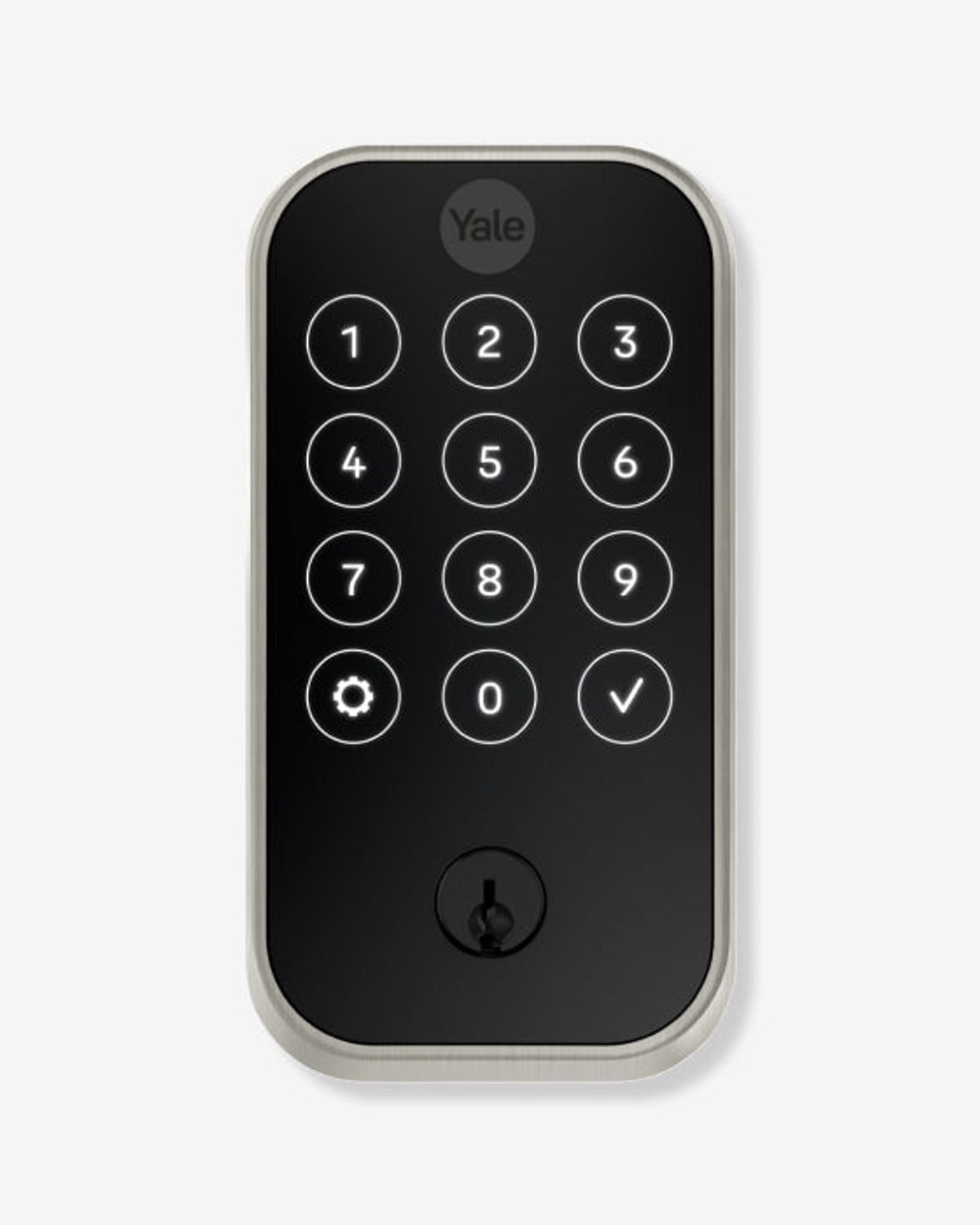
Best Smart Locks of 2026: Tested Picks for Every Door and Budget
We compared the results of weeks-long tests from Consumer Reports, Forbes, Tom’s Guide and other labs to find the smart locks actually worth buying in 2026. Best overall: Yale Assure Lock 2 The best combination of security, features and reliability for most homeowners. Four versions (keypad or touchscreen, keyed or keyless), an ANSI Grade 2 deadbolt, up to 250 PIN codes, and modular support for Wi-Fi, Z-Wave and Matter. From $159. Read our full review. Best premium: Level Lock Pro Forbes’ best overall pick after weeks of testing. The entire mechanism hides inside the door — from outside it looks like a normal deadbolt. Ideal when aesthetics matter as much as smarts. Most secure: Kwikset Obsidian The strongest lock in brute-force testing: its keyless design makes it impossible to pick and exceptionally resistant to drilling. The choice for maximum physical security. Best with built-in Wi-Fi: Eufy Smart Lock Touch The Eufy S230 packs Wi-Fi directly into the lock — no extra bridge — plus a fingerprint reader, and scores strongly in kick-in and picking tests. Best budget/easy: August (4th gen) Fits over your existing deadbolt, so your keys keep working. Affordable, easy to install, works with Alexa, Google Home and thousands of devices, with DoorSense alerts when the door is left open. How to choose Decide on three things first: keyed vs keyless (backup key or full commitment), connectivity (Matter and Thread are the future-proof picks in 2026), and power (AA batteries are easiest to live with). Any lock above will serve you well for years.